Send a picture
Choose Image (PNG), then select a destination in your device’s share menu, such as Messages or email.
The recipient can view the image without Kofuda. Free image exports include a Kofuda credit.

KOFUDA · GETTING STARTED
Create a little piece of Japanese-inspired art from your name — or make something personal for someone you love. Start with a Kofuda card, then explore colors, lettering and patterns to make it your own.
Kofuda is available for iPhone and Android. Creation screenshots below show the current iPhone app; controls may look slightly different on Android. The card exchange examples are edited illustrations.
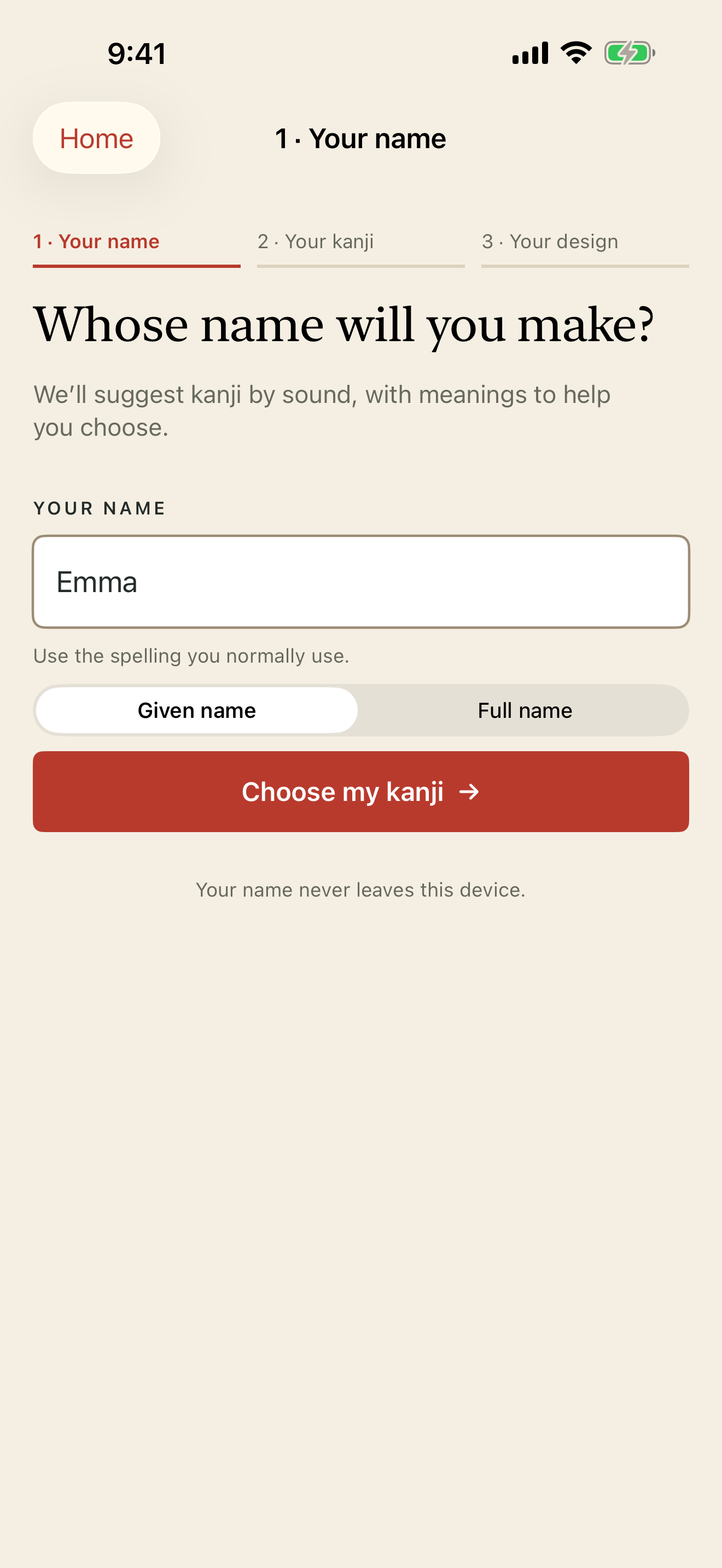
01 · YOUR NAME
Making a gift? Start with the recipient’s name. You can choose a design and color that remind you of them later.
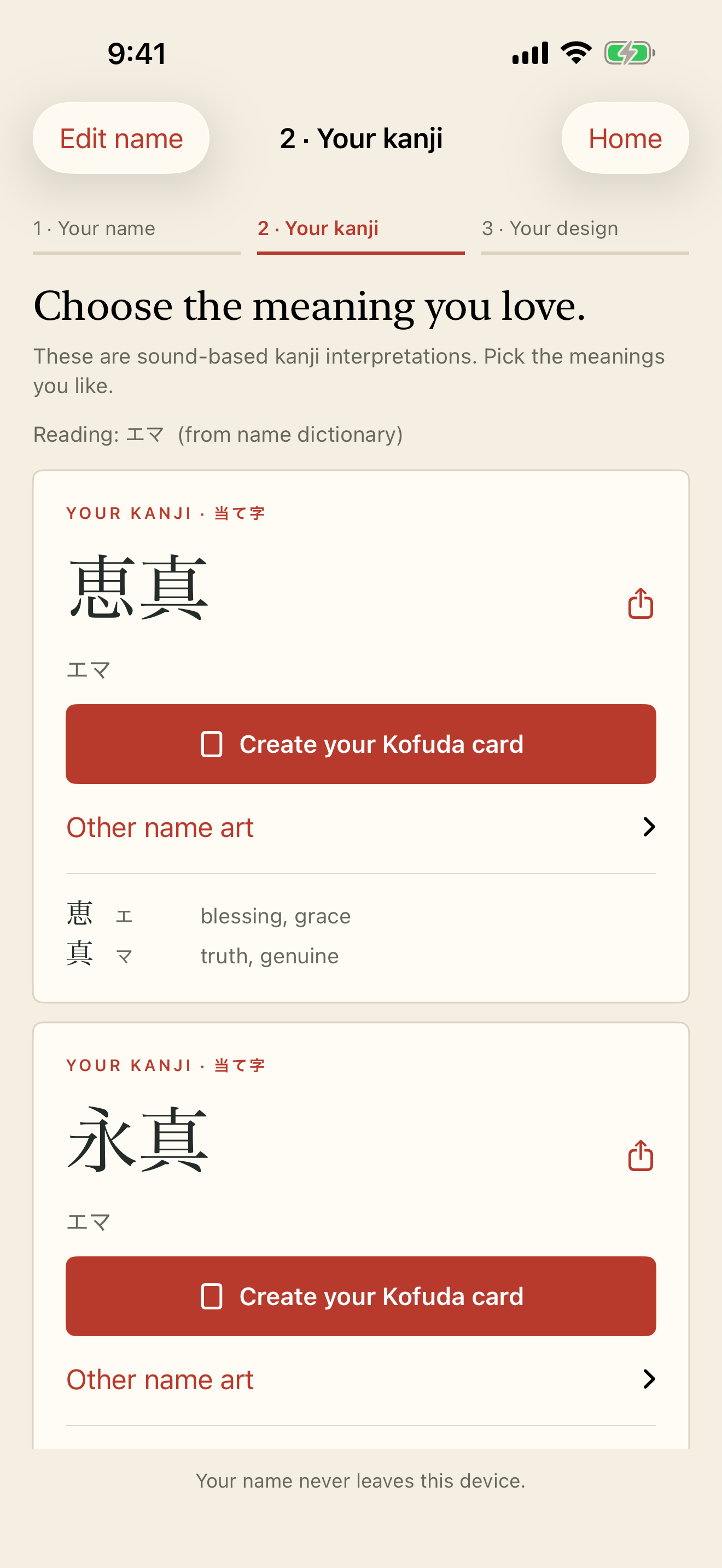
02 · YOUR KANJI
Open Other name art beneath a kanji suggestion to explore Hanko, Name Calligraphy, Kanji Story Card and Name Crest. These features require the one-time unlock.
Kofuda uses ateji: kanji chosen for the sound of your name. It is a creative interpretation for art and gifts, not an official translation or legal spelling.
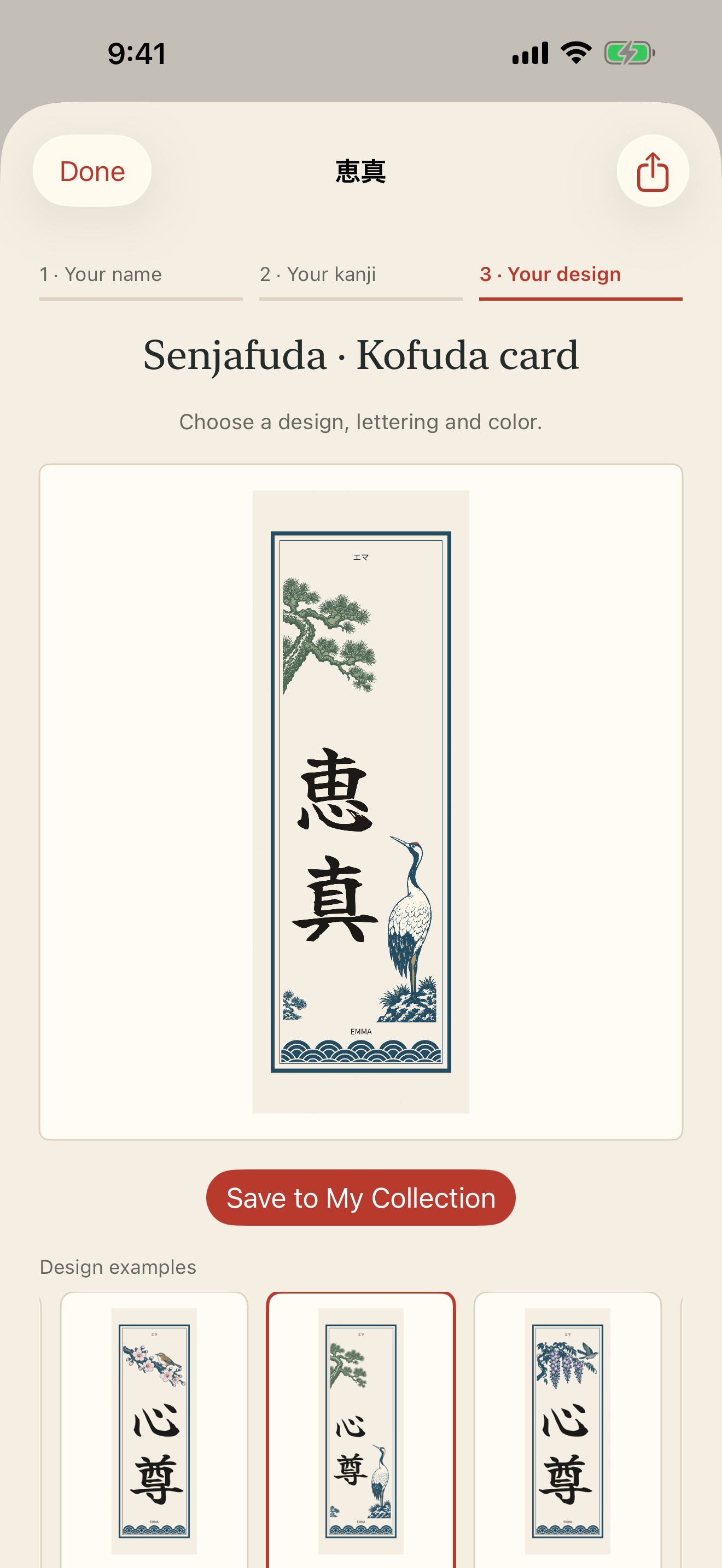
03 · YOUR DESIGN
Try a blossom motif for a gentle feel, or a simple frame to let the kanji take center stage.
Options with a lock are part of the optional one-time purchase. You can try them in the preview; using locked options requires the unlock.
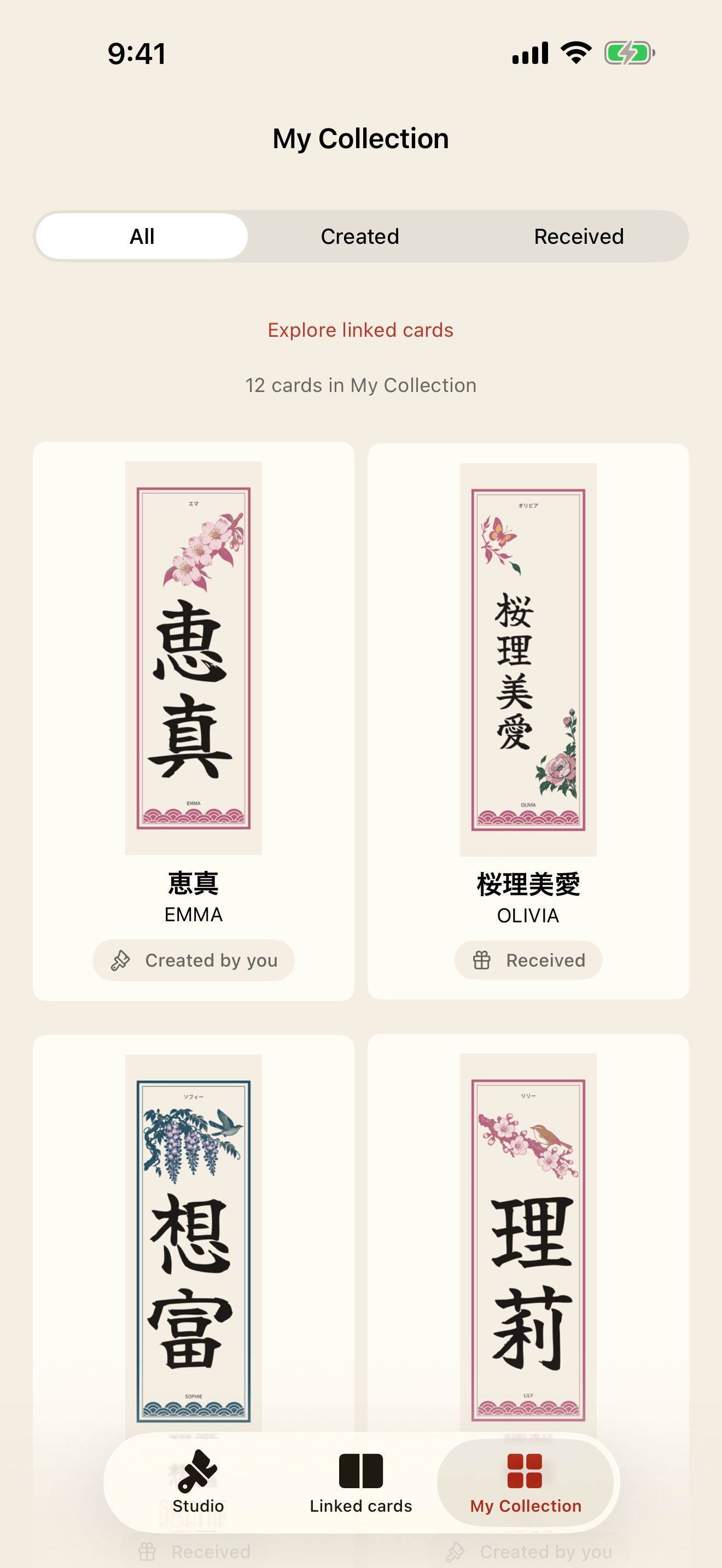
04 · SAVE
Your collection lives on your device. There is no Kofuda account or online collection. Device backups may preserve app data, but deleting the app also deletes its local collection.
Choose Image (PNG), then select a destination in your device’s share menu, such as Messages or email.
The recipient can view the image without Kofuda. Free image exports include a Kofuda credit.
Choose Print file (PDF) to share a file for printing through your device’s share menu.
PDF export requires the optional one-time purchase. Printing is handled outside Kofuda.
For a Kofuda card, choose Send as Kofuda card to send a link or file, or Show QR code for your friend to scan.
Your notes are not included. The recipient needs Kofuda to open the card.
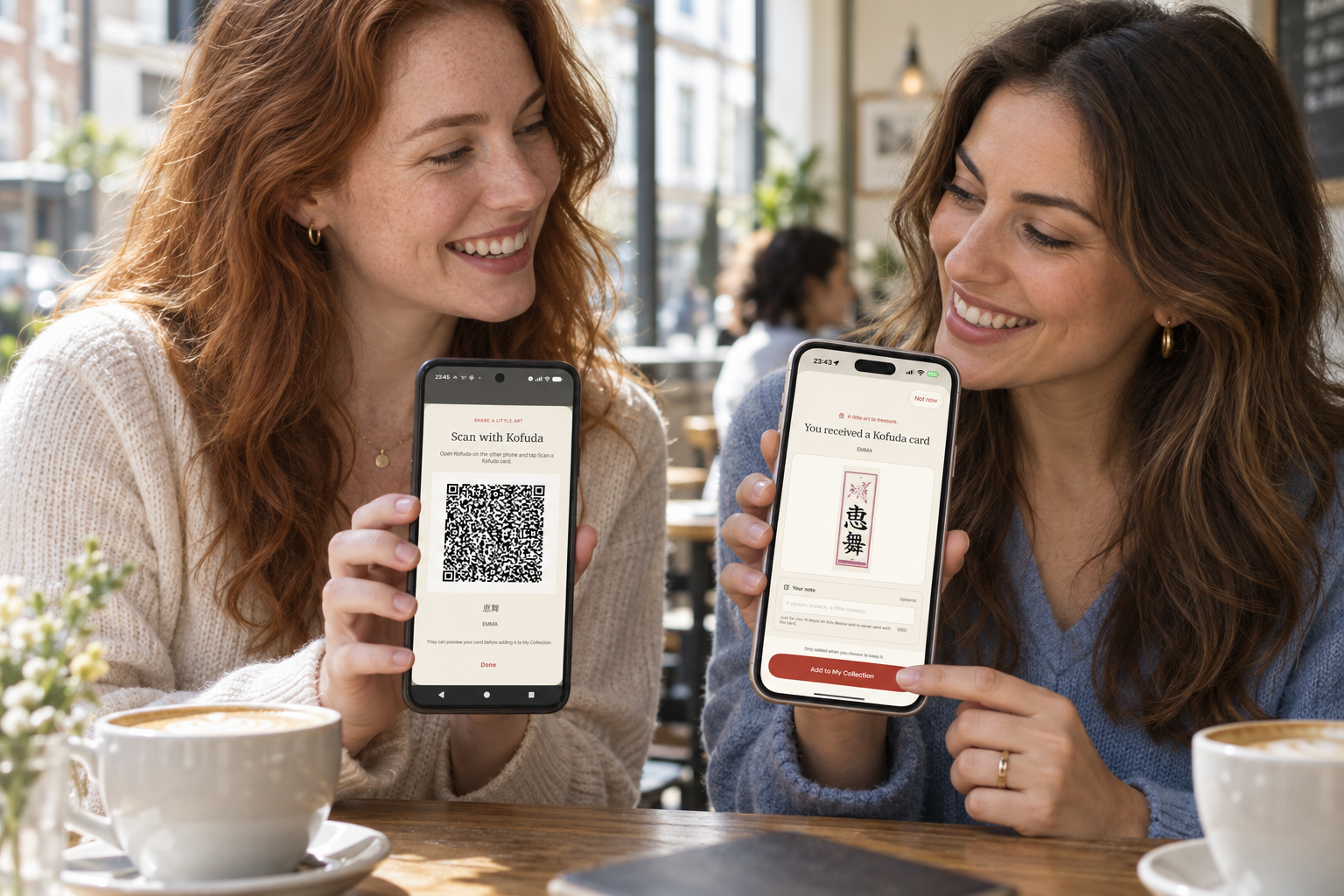
Open the link or .kofuda file you received. For a QR code, open Kofuda and tap Scan a Kofuda card in Studio, then allow camera access if asked. Check the preview, add an optional note, then tap Add to My Collection. Nothing is saved until you choose to keep it.
If you change a received card’s design and save it, Kofuda keeps the original and saves your version as a new card.
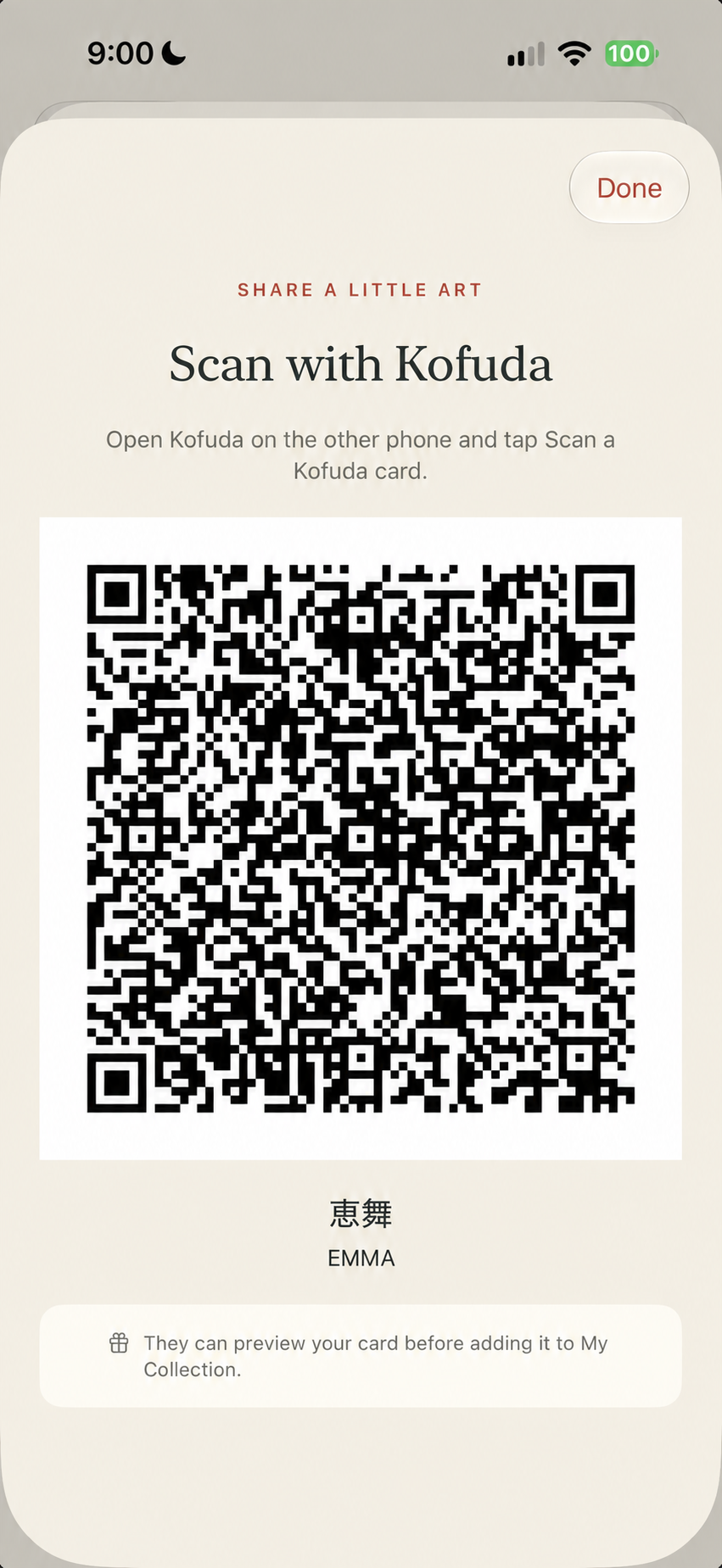
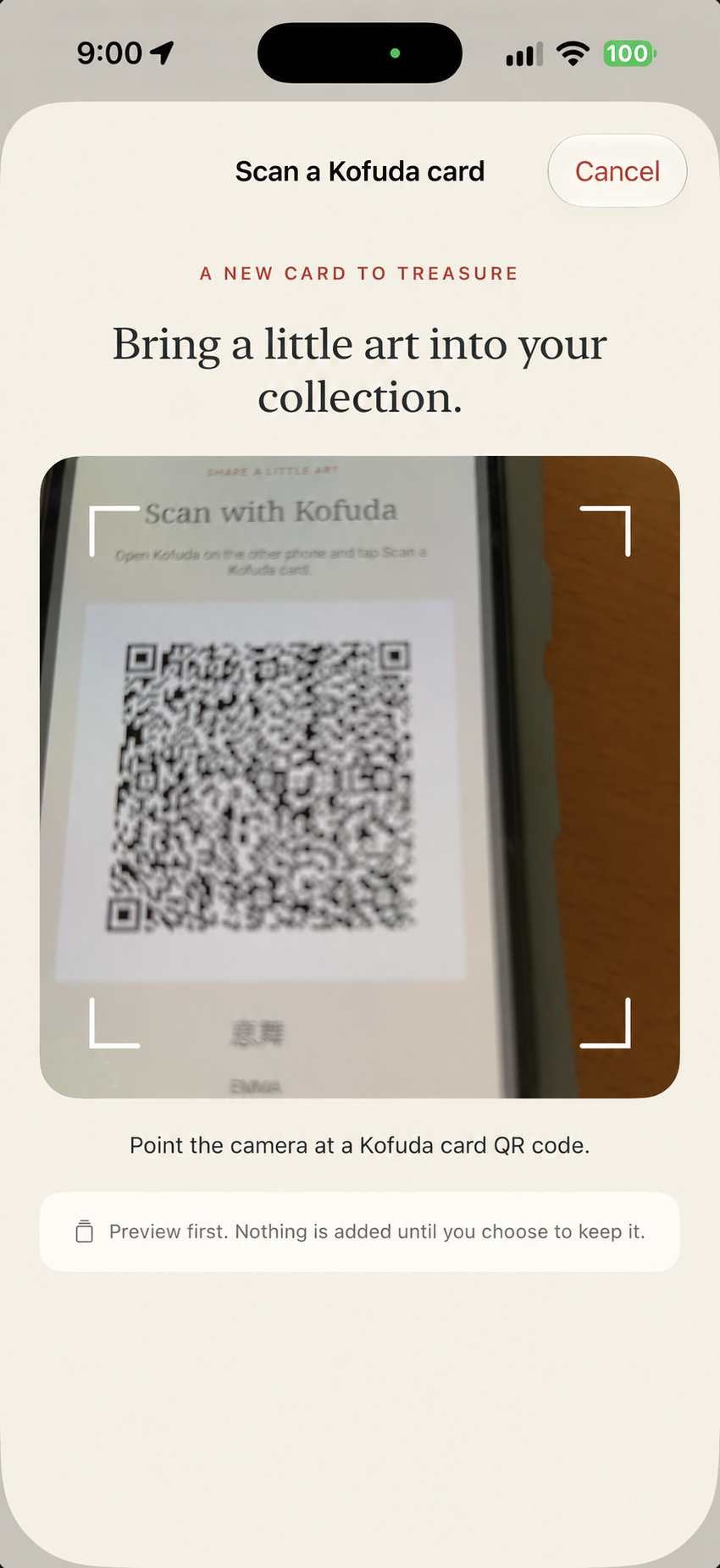
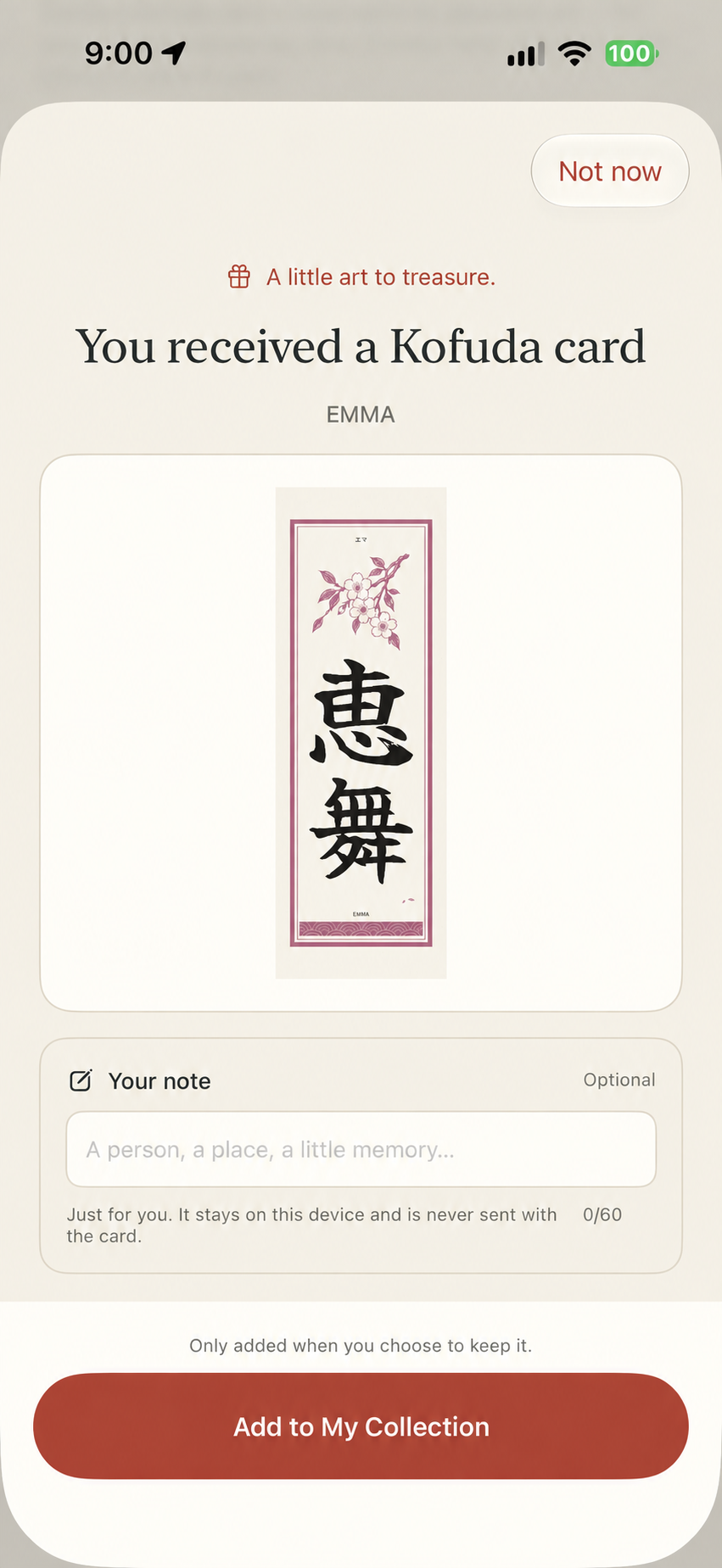
Exchange example: Emma, with the kanji 恵舞 and a cherry-blossom design. Tap any screenshot to enlarge.
06 · LINKED CARDS
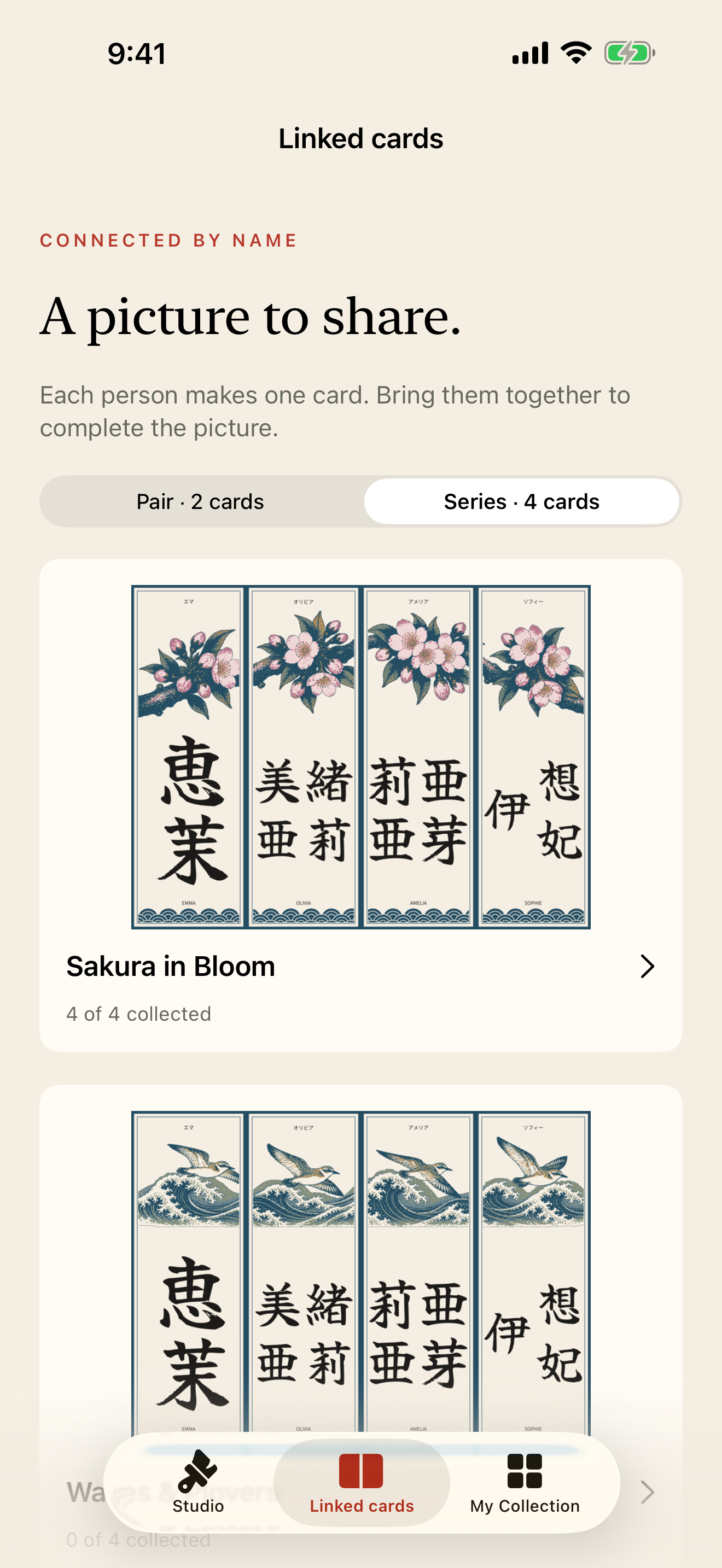
Two names can share one picture. Four cards can become a scene. Create a piece for yourself, exchange it with friends and see your collection come together.
Pairs: Tied Together and Moonlit Sakura.
Four-card sets: Sakura in Bloom, Waves & Plovers and Pine & Cranes.
Creating a linked-card design requires the one-time unlock. You can receive, save and exchange a friend’s card for free. Your private notes stay on your device.
GET KOFUDA


Available in six countries only: Ireland, the United States, the United Kingdom, Australia, Canada and New Zealand. Not available in Japan. The app is in English.
Free to start. A one-time in-app purchase unlocks all designs, linked-card creation, typefaces, custom colors, PDFs, Hanko and name art. No subscription.